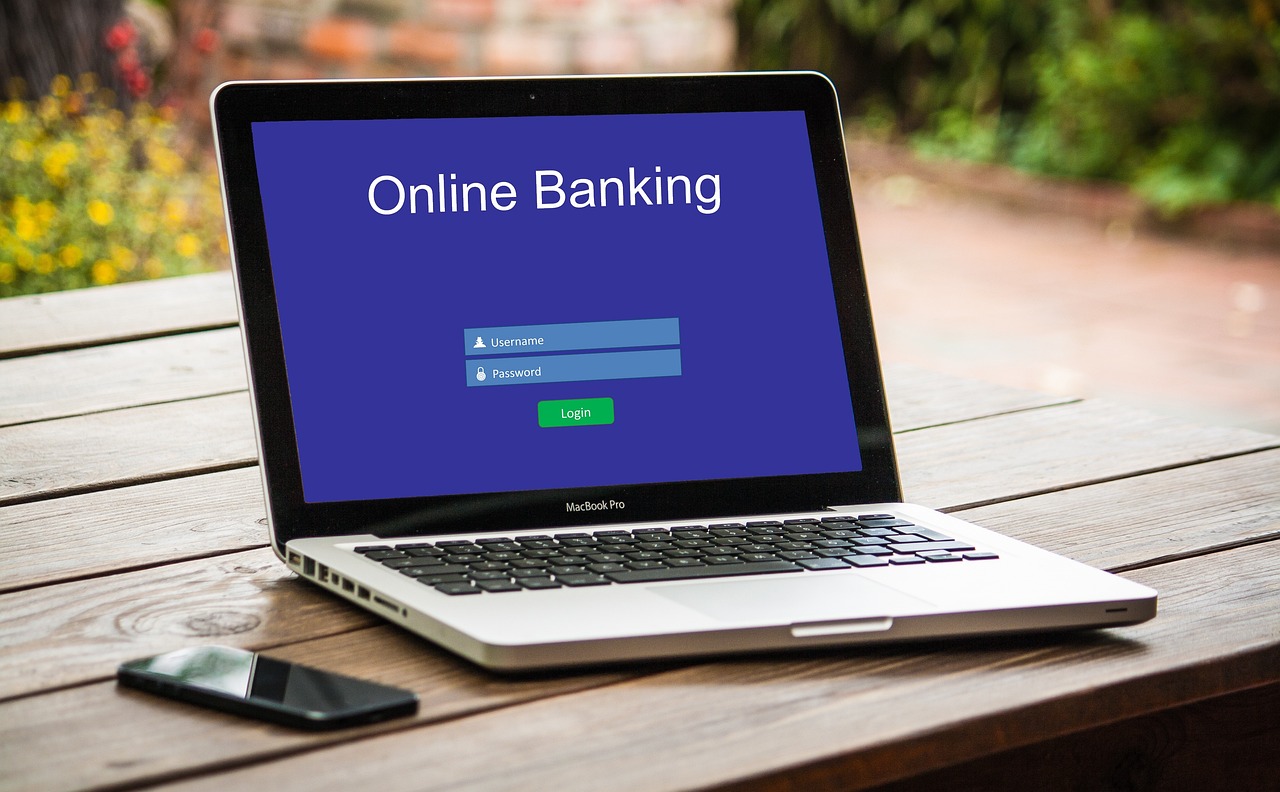
What is two-factor authentication (2FA)?
- WeThePurple
- Protect
- 7 min read
Two-factor authentication adds a second lock so a stolen password is no longer enough to open your account. What the two factors are, how it works, which second factors are strongest (and which are not), and how to turn it on in a few minutes.
You type in your password and you are in. That is single-factor authentication, and it has one obvious weakness: if someone else learns your password - through a data breach, a phishing email or a reused login - they are in too. Two-factor authentication, usually shortened to 2FA, adds a second lock so that a stolen password on its own is no longer enough to open your account.
Two-factor authentication means proving who you are with two different kinds of evidence before you are let in. Security professionals group these kinds of evidence into three categories, or factors: something you know (a password or PIN), something you have (a phone, a hardware security key, or a code-generating app) and something you are (a fingerprint, face or other biometric). 2FA combines two of these categories, which is why a code sent to your phone counts but two passwords do not - two passwords are both the same factor.
How does two-factor authentication work?
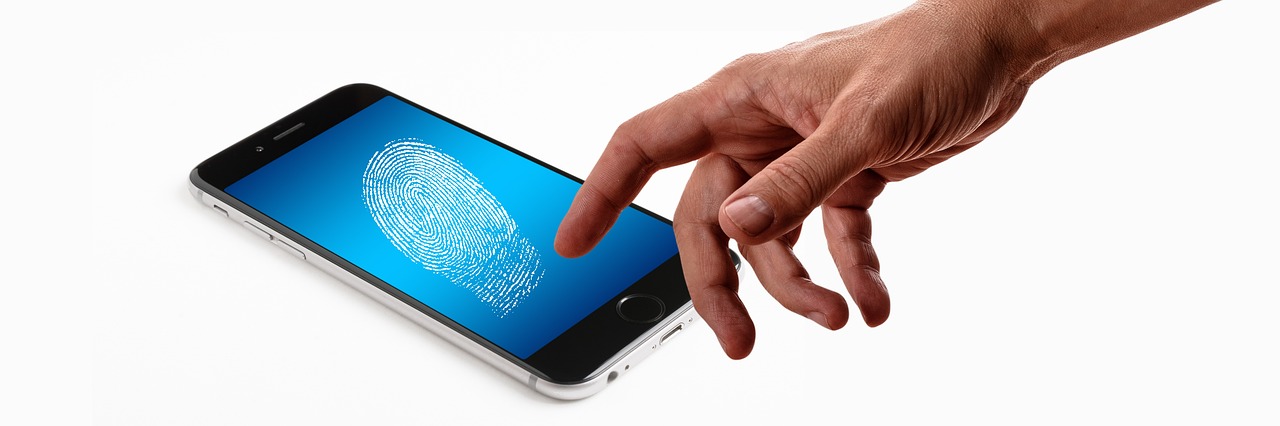
In practice it usually works like this. You enter your username and password as normal. The service then asks for a second proof: a six-digit code from an authenticator app, six digits being the minimum that RFC 4226 set for these codes back in December 2005, a tap on a notification, a code by text message, or a touch of a hardware key. Only when both checks pass are you signed in. Because the second factor changes constantly or is physically tied to a device you hold, an attacker who only has your password is stopped at the second step.
Not all second factors are equally strong. Codes sent by SMS are the most common and far better than nothing, but text messages can be intercepted or redirected through a technique called SIM swapping, where an attacker tricks your mobile carrier into moving your number to their device. Authenticator apps such as those built into password managers, or standalone apps, generate codes on your device itself using an open standard, TOTP, defined by RFC 6238 in May 2011. That standard recommends a 30-second time step, so each code lives for half a minute and 120 of them come and go in an hour. Nothing is sent over the network, so there is no message to intercept. Hardware security keys and passkeys, which are based on the FIDO2 and WebAuthn standards, go a step further: they are designed to be resistant to phishing because the key checks the website's real address before it responds.
Which second factor is the most secure?
Phishing is exactly the gap that the strongest second factors are built to close. A convincing fake login page can capture both your password and a typed-in code if you are tricked into entering them. A hardware key or passkey is bound to the genuine site, so even a perfect-looking copy cannot use it. This is why many security teams now recommend moving away from SMS codes toward an authenticator app at minimum, and toward keys or passkeys for accounts that matter most.
- Turn on 2FA for your most important accounts first: primary email, banking, and your password manager
- Prefer an authenticator app (TOTP) or a hardware security key over SMS codes, which can be intercepted via SIM swapping
- Use hardware keys or passkeys (FIDO2/WebAuthn) for high-value accounts - they resist phishing by checking the real site
- Save the one-time backup/recovery codes offline so you can get back in if you lose your phone
- Pair 2FA with a password manager so every password is unique and strong, and a single leak unlocks nothing
The case for turning 2FA on is simple: passwords leak constantly. Billions of stolen credentials circulate online from past breaches, and people reuse the same password across many sites, so one leak can unlock several accounts. A second factor breaks that chain. Even if your password appears in a breach, an attacker still cannot sign in without the code or device that only you hold. That is also why a password manager and 2FA work well together - the manager keeps every password unique and strong, and 2FA guards the accounts that matter even if one password is exposed.
How do you turn on two-factor authentication?
Setting up 2FA takes a few minutes per account and lives in the security or login settings of most services. Start with the accounts that would hurt most if lost: your primary email (because it can reset everything else), your banking and payment apps, and your password manager itself. Where you have the choice, pick an authenticator app or a hardware key over SMS. When you enable 2FA, the service usually shows a set of one-time backup or recovery codes - save them somewhere safe and offline, because they are how you get back in if you lose your phone.
Losing access to your second factor is the worry that stops many people, and it is worth planning for rather than avoiding. Keep your backup codes, register a second method where the service allows it (for example a backup key or a second device), and some authenticator apps can securely sync your codes across your own devices so a lost phone is not a lockout. The few minutes spent on recovery options are far less painful than losing an account to someone who guessed or stole a single password.
What if you lose your second factor?
Two-factor authentication is one of the highest-value privacy and security steps you can take, and it is largely free. It will not fix a weak or reused password, and SMS codes are not bulletproof, but adding any second factor turns your password from a single point of failure into one lock among two. For the accounts that hold your identity, money and messages, that second lock is well worth the few minutes it takes to set up.
Most ordinary incidents leave no file to scan and break no encryption: the password is typed by hand, on a page that looks right. What protects you is an arrangement, not a tool. Situate your own attack surface, 10 questions, about three minutes, no account, no email, nothing stored.

Two-factor authentication is one of the highest-value privacy and security steps you can take, and it is largely free. It will not fix a weak or reused password, and SMS codes are not bulletproof, but adding any second factor turns your password from a single point of failure into one lock among two. For the accounts that hold your identity, money and messages, that second lock is well worth the few minutes it takes to set up.